1. Accessing the review system
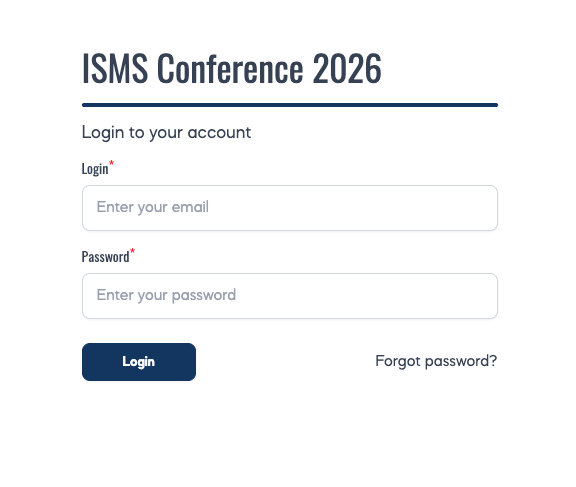
When your reviewer account was activated, you received an automated email containing:
- a direct login link to the ISMS Conference 2026 abstract management system: https://app.confenta.com/events/isms/cp/abstracts, after which you are redirected to the log in page: https://app.confenta.com/events/isms/en/login
- your username (registered email address)
- a temporary password.
Please, note that if you have already submitted an abstract to ISMS Conference 2026, you do not need new credentials. You may log in using the same username and password you received at the time of abstract submission.
If your password does not work, or you do not remember it, you can reset your password using: https://app.confenta.com/events/isms/en/forgot-password.
If you experience any other difficulties logging in, please contact the Conference Secretariat at tiiu.taur@baltdefcol.org.
2. Main Screen
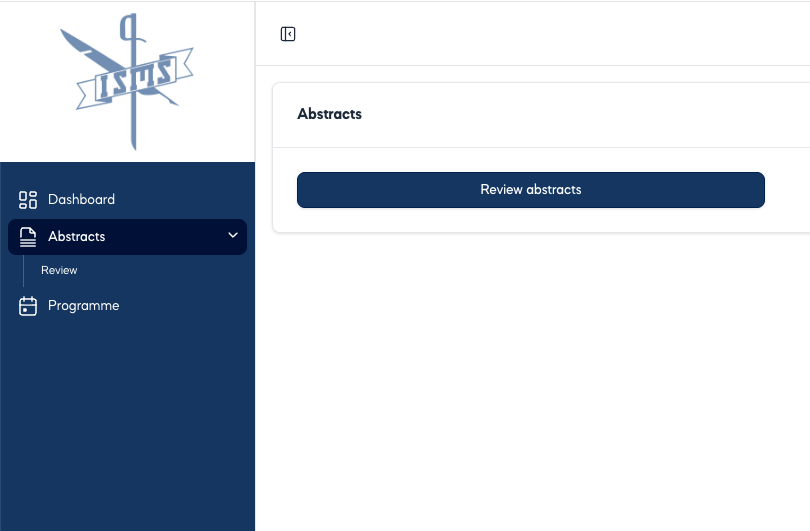
After logging in, you are taken to the home screen at https://app.confenta.com/events/isms/cp/abstracts
In the menu on the left, you see:
- Dashboard
- Abstracts with subheading: Review and if you have already submitted abstract(s), you also see subheading My abstracts
- You also see Programme that contain no information at the moment (will be added later)
In the middle of the screen, you also see Abstracts:
- Review abstracts
- Submitted abstracts (if you have already submitted abstract(s))
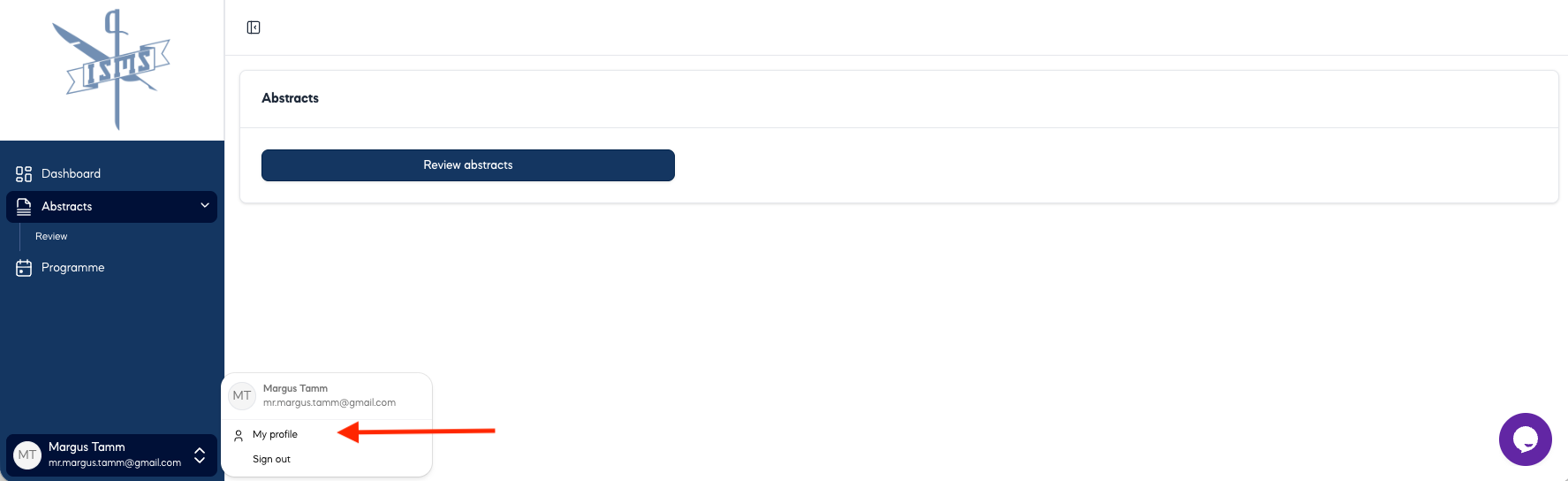
If you want to change your password for security or convenience reasons, click on your name in the bottom-left corner and you can access My Profile. There is a special section Password with an option to change it. You are most welcome to insert any additional information there as well.
3. Reviewer screen
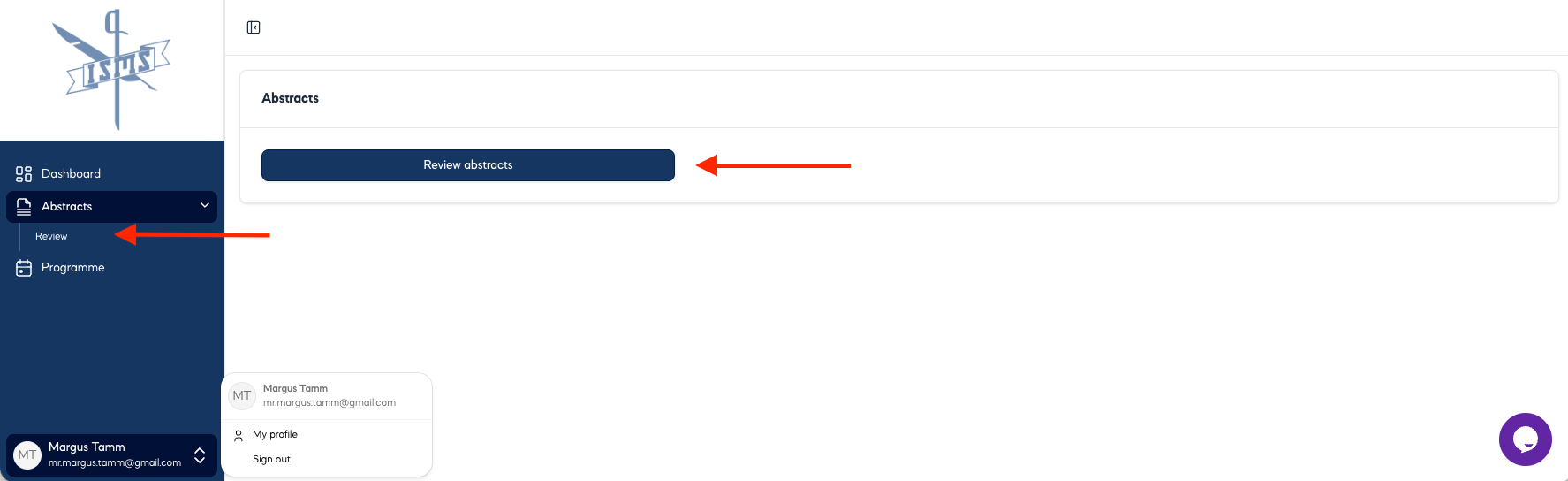
To see the abstracts, click either on Review in the menu on the left or Review abstracts in the middle of the screen.
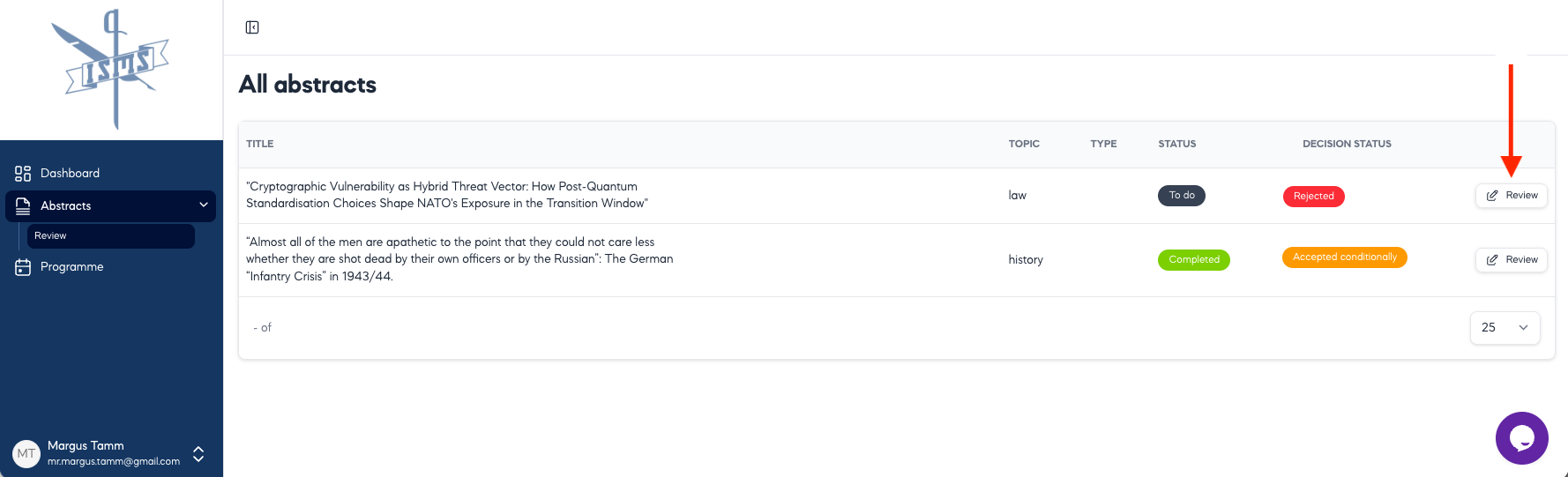
Now you see a screen with a list of abstracts assigned to your Working Group for review as follows:
- TITLE given by the abstract submitter
- TOPIC is a keyword for your Working Group
- TYPE “Presentation” or “Panels / Roundtable”, chosen by abstract submitter
- STATUS is either “To do” (dark blue) or “Completed” (green), depends on your action
- DECISION STATUS is either “ – “ or “Accepted”(green) or “Accepted Conditionally” (orange) or “Rejected” (red), depends on your action
Only abstracts allocated to your Working Group are visible to you.
4. Reviewing an abstract
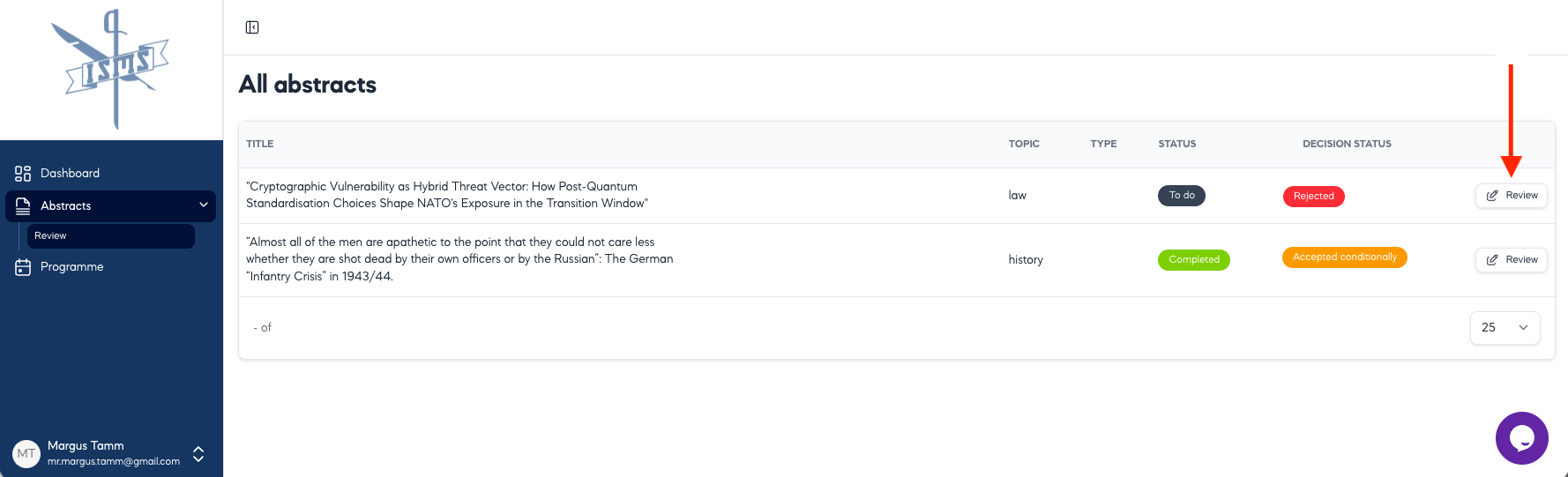
To start reviewing an abstract, click on Review button at the right end of the row (see the red arrow on the screenshot below). You can edit your review at any time before confirming to the organizers that your review is complete by clicking the Review button again.
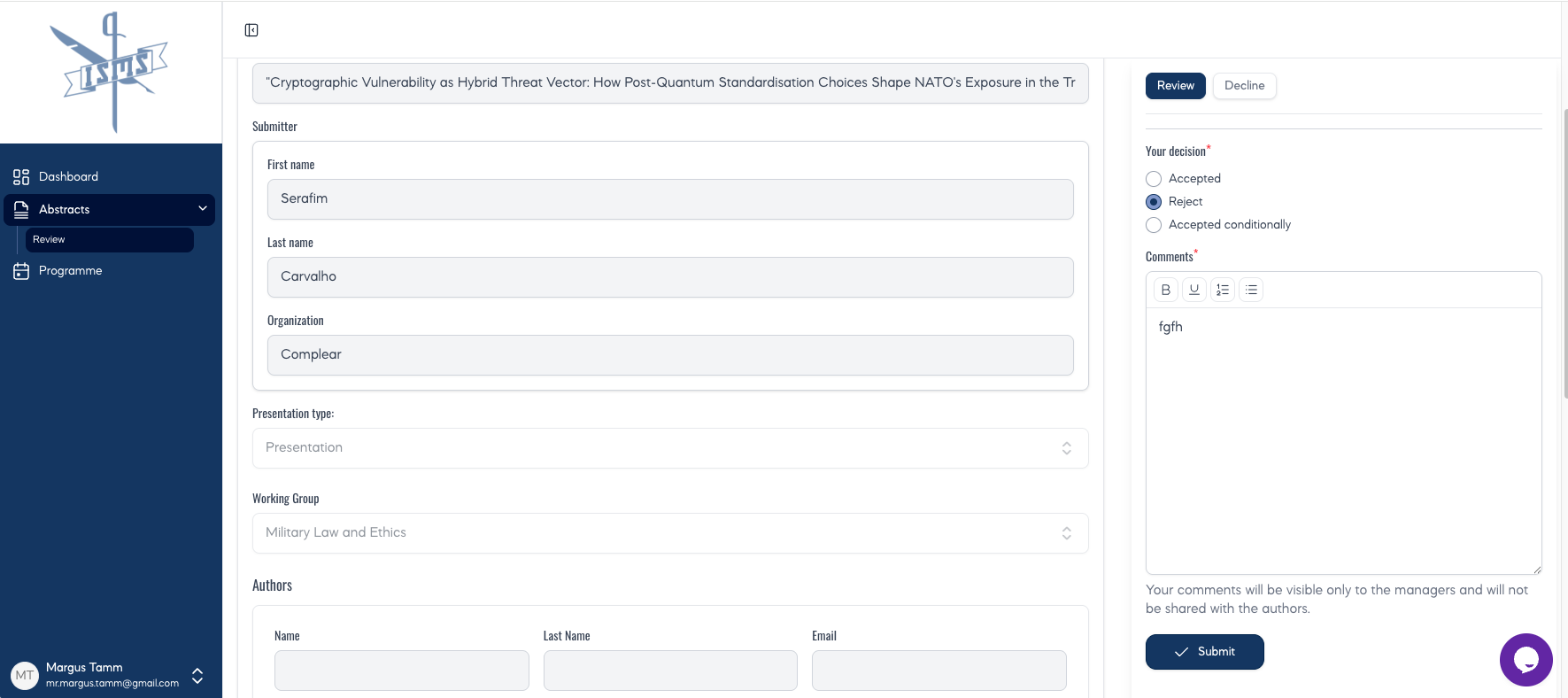
For each assigned abstract, you see Title, Submitter information, Presentation type, Working Group, Abstract text, and Keywords in the middle of the screen. On the right, there is a reviewing section (see screenshot below).
- If you feel that there is Conflict of Interest in case of this abstract, please select Decline, describe the reasons in Comment section and press Decline a Review. The Conference organizers will assign this abstract to somebody else.
- If you feel that this abstract does not belong to your Working Group (i.e., it is not your topic), please select Decline, describe the reasons and recommend another Working Group in Comment section and press Decline a Review. The Conference organizers will assign this abstract to another Working Group.
- If your decision is Accept, no comment is needed, just press Submit.
- If your decision is Reject, describe the reasons in Comment section and press Submit. Your comments will be visible only to the Conference organizers and will not be shared with the author(s). Please do not be concerned about the wording, as the conference organizers will refine your text before notifying the author(s).
- If your decision is Accepted conditionally, describe the reasons and give further recommendations to the author(s) in Comment section and press Submit. Your comments will be visible only to the Conference organizers and will not be shared with the author(s). Please do not be concerned about the wording, as the conference organizers will refine your text before notifying the author(s).
7. Review period and deadlines
The Conference organizers will appreciate if you could review the abstracts submitted before May 31 by June 29 as it was promised that decisions are made and submitters are notified on June 30.
As the abstract submission deadline is extended to June 30, the rest of the abstracts should be reviewed not later than July 30 (decisions to be sent out on July 31).
Please inform the Conference organizers (tiiu.taur@baltdefcol.org) once your working group has completed the review process to support a smooth workflow.
8. Support and assistance
If you encounter any technical difficulties, access issues, missing abstracts, or have questions about the review process, please contact the Conference Secretariat at tiiu.taur@baltdefcol.org. We will coordinate with the technical team to resolve any issues promptly.